Connecting to M3 via IDE
Please read and follow these instructions so that your VSCode/Cursor/other IDE runs on a compute node, rather than on the shared login node. This is especially relevant if you are going to run something that spawns agents, like Cursor or Codex as they can be resource intensive.
Running jobs on the login nodes impacts other users and also results in sub-optimal performance for your own work. Please use the login nodes only for light tasks like file exploration, editing, and job submission.
Introduction
Interactive Development Environments (IDEs) like VS Code and Cursor can connect to M3 as a remote server allowing you to do many things including:
- Debugging Python code
- Writing code in many other languages
- Replacing for R Studio
- Replacing for JupyterLab
- Launching agents
Configuration
Generate an SSH key
While not strictly necessary we strongly recommend you setup key based authentication.
Adding the SSH config
We're going to setup three SSH configs:
- One for connecting to the login node (please only use this with a terminal)
- One for connecting with your IDE for small things like file exploration
- One for connecting your IDE to a Strudel job for computational tasks
The ProxyCommand directive allows you to connect to a node allocated to you rather
than one of the login nodes. This is different to the usual VS Code
Server setup because you're on a shared HPC cluster, not a regular
server.
- Linux & macOS
- Windows
Host M3_Login
    HostName m3-login.massive.org.au
    User <username>
    IdentityFile </path/to/ssh/key>

Host M3_IDE
    User <username>
    ProxyCommand ssh M3_Login /usr/local/sv2/ide_tunnel.sh

Host M3_Strudel
    User <username>
    ProxyCommand ssh M3_Login /usr/local/sv2/ide_tunnel_strudel.sh
Host M3_Login
    HostName m3-login.massive.org.au
    User <username>
    IdentityFile </path/to/ssh/key>

Host M3_IDE
    User <username>
    ProxyCommand ssh.exe M3_Login /usr/local/sv2/ide_tunnel.sh

Host M3_Strudel
    User <username>
    ProxyCommand ssh.exe M3_Login /usr/local/sv2/ide_tunnel_strudel.sh
Testing the ssh configs
The first two configs can be tested directly in your terminal.
ssh M3_Login # This should connect you to login node
ssh M3_IDE # This should create a small job called 'Remote' if one doesn't exist and connect to it
The next one needs a Terminal job in Strudel to be created first to connect. Note that this is distinct from launching a terminal from within a Desktop job in Strudel.
ssh M3_Strudel # This should connect you to a Terminal job if you have one
M3_Login should connect you to a login node, while M3_IDE and M3_Strudel should connect you to a compute node.
You can check this by checking the hostname. You should also be able to see the job you're attached to using squeue --me.
Configuring your IDE and Connecting
These steps are different for each IDE:
- VSCode
- Positron
- Cursor
-
Install the Remote Development Extension Pack if not yet installed
-
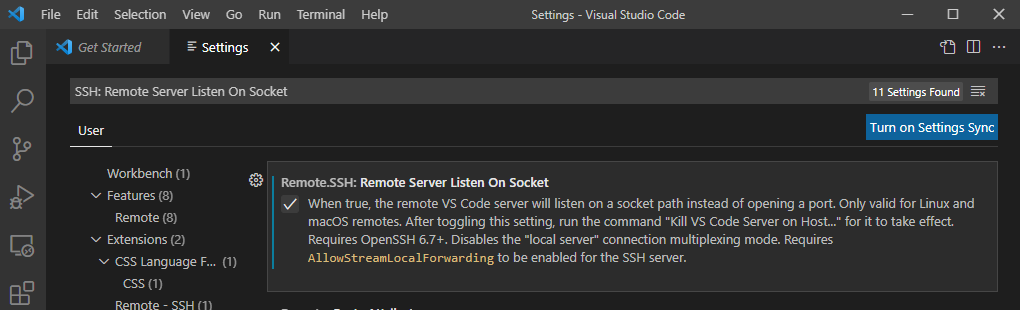
Enable Remote Server Listen On Socket if you haven't
-
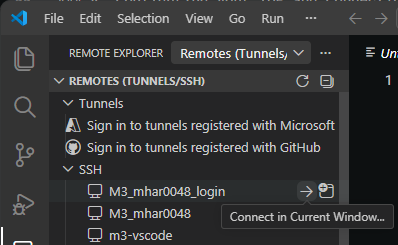
Click on the Remote Explorer in the activity bar

You should now see a list of SSH configs for you to connect to
-
Hover over your selected config and click on one of the connect buttons that appear
-
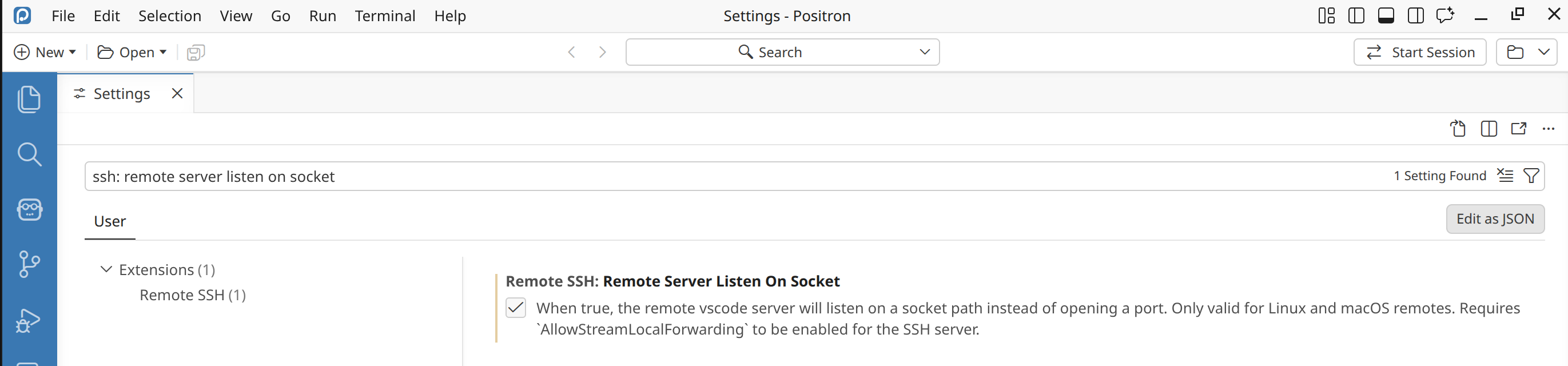
Enable Remote Server Listen On Socket if you haven't
-
Click on the Remote Explorer in the activity bar
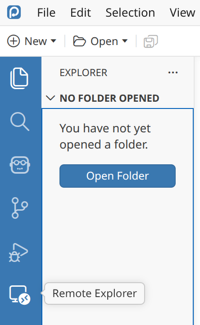
You should now see a list of SSH configs for you to connect to
-
Hover over your selected config and click on the connect option that appears
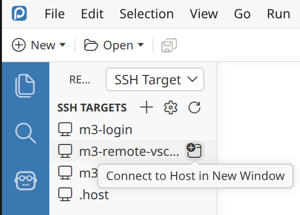
-
Click on the Open Workspace icon in the sidebar
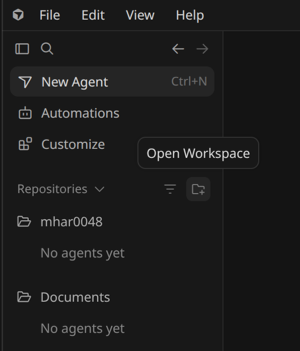
-
Click on 'Connect SSH'
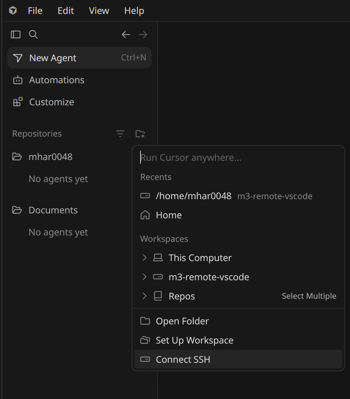
You should be able to see your prepared configs to select from
-
Click on one of the connect options

Frequently Asked Questions
I see a message about "Connection Reset by peer" - what does it mean?
This will happen if you fail to authenticate too many times - perhaps typing in your key passphrase incorrectly. Wait 10 minutes, and try again. If you still run into errors please contact the helpdesk.
I keep getting prompted for a password in an endless loop - what should I do?
Check that your connection command includes the username everwhere you need it (it should be in there twice, once for the login node and once for the compute node). Also, ensure you added your keys to the ssh-agent to avoid typing your key passphrase every time. You will need to do this after every reboot.
I got an error message about posix spawn - how do I fix it?
You're probably on Windows. Check that you used the Windows specific command with ssh.exe instead of ssh.
I tried to use the ssh-agent but it says "Permissions mykey are too open."
A: Private keys should never be shared - ensure only you have read, write, and execute permissions on your private key. Linux/Mac users see this StackOverflow post. Windows users, see this blog post.